 How-to
How to Integrate Smart Home Devices: Step-by-Step Guide
Table of Contents
- What Smart Home Integration Means for Your Home
- Smart Home Device Compatibility: A Practical Checklist
- Choosing the Right Smart Home Hub
- Smart Home Network Setup: Wi-Fi, Router, and Mesh Networking
- Step-by-Step: Pairing and Connecting Your Devices
- Smart Home Routines and Automations That Work
- Privacy, Security, and Troubleshooting by Symptom
- Conclusion
- Frequently Asked Questions
Last Updated: October 21, 2026
What Smart Home Integration Means for Your Home
Smart home integration is the practice of connecting devices from different brands so they work through one app, one voice assistant, or one automation routine. This guide from All Around Technologies LLC walks through how to integrate smart home devices in a mixed-brand house, from the compatibility check to the final scene. Most homeowners we talk to already own a few gadgets.
Smart Home Integration vs. One-Off Gadgets
A single smart bulb is a gadget. A bulb that turns on when your doorbell detects motion is integration. The difference is the controller in the middle.
- One-off gadget: controlled by its own app, alone
- Integrated device: shares triggers and schedules with other devices
- The glue: a hub, a platform, and a stable network
Smart Home Device Compatibility: A Practical Checklist
Smart home device compatibility means checking that your devices speak the same protocol and report to the same platform before you buy. Skipping this step is the most common mistake we see.
Protocols and Ecosystems: Wi-Fi, Zigbee, Z-Wave, Matter, Thread
Wi-Fi devices connect straight to your router. Easy setup, but each one adds traffic. Zigbee and Z-Wave use a hub and low-power mesh signals. Thread is a newer low-power mesh built for battery devices. Matter is a shared standard that lets devices from different brands work across major platforms. Check the Connectivity Standards Alliance Matter overview for current device listings.
Before You Buy: Five Compatibility Questions
- Does the device list the platform you already use?
- Does it need a hub, and do you own that hub?
- Which protocol does it use, and does your controller support it?
Choosing the Right Smart Home Hub
The right smart home hub depends on which ecosystems your devices already use. A hub is the controller that bridges protocols and runs automations. Some homes need a dedicated hub; others get by with a smart speaker that includes a Thread radio.
- Mixed protocols: pick a hub that supports Wi-Fi, Zigbee, Z-Wave, and Thread
- Single ecosystem: a speaker or display from that brand may be enough
- Local control priority: choose a hub that runs routines without the cloud
What most guides miss is that the hub matters less than the network underneath it.
Smart Home Network Setup: Wi-Fi, Router, and Mesh Networking
Smart home network setup starts with a router that can handle many devices at once. Every connected device competes for bandwidth and signal. A weak spot in the house becomes a device that drops offline.
- Place the router central and high, not in a closet
- Use mesh nodes to cover dead zones
- Put high-traffic devices on a separate band or network
Structured Wiring and Network Cabling for Reliability
Wi-Fi handles most smart devices fine. Fixed gear like cameras, TVs, and access points do better on wired Ethernet. Structured wiring runs low-voltage Cat6 cable from a central point to each location.
Low-voltage cable is not the same as line-voltage electrical wiring. Never run a standard power cord or extension cord inside a wall. If a project needs a new outlet behind a TV or camera, bring in a qualified electrician.
Step-by-Step: Pairing and Connecting Your Devices
Pairing works best in a set order: network first, hub second, devices third, automations last. Rushing this sequence is why so many setups fail on day one.
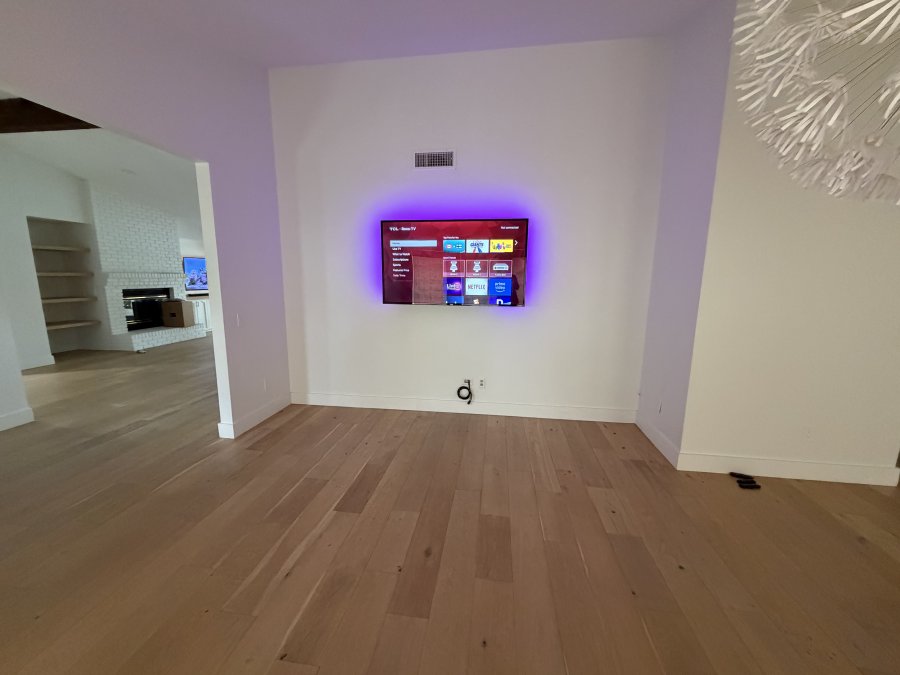
A Realistic Mixed-Device Walkthrough
Picture a home with a voice assistant, smart bulbs, a video doorbell, and a thermostat from three different brands.
Stage 1, Prepare the network (about 30 minutes).
- Confirm the router is stable and note the network name and password. Use the main network, not a guest network, for devices that need to talk to each other.
- Check signal strength in the rooms where devices will live. A phone speed test in each room is a rough but useful gauge.
- If you have a mesh system, confirm the nodes are online and the devices will connect to the nearest node.
- Write down the exact Wi-Fi band (2.4 GHz or 5 GHz) each device needs. Many smart bulbs and sensors only support 2.4 GHz.
Stage 2, Set up the hub or speaker (about 20 minutes).
- Plug in the hub or speaker and finish its firmware updates before adding anything else. Updates can take several minutes and may restart the device.
- Create or sign in to the platform account using an email you check regularly.
- Enable two-factor authentication now, not later.
- Note which protocols the hub supports (Wi-Fi, Zigbee, Z-Wave, Thread) so you know what can join directly.
Stage 3, Add devices one at a time (about 10-15 minutes each).
- Start with the bulbs. Put the hub in pairing mode, then power on one bulb at a time. Adding several at once is the most common cause of partial pairings.
- Name each device by room and function as you add it ("Kitchen Overhead"), not by brand.
- Connect the doorbell to Wi-Fi using its own app first, then link it to the platform. Doorbells often need a firmware update before they will link.
- Add the thermostat and grant it access to the platform. Confirm the platform can read its current temperature before building anything.
Stage 4, Test each device alone (about 15 minutes).
- Turn each device on and off from the app.
- Test each device with a voice command.
- Confirm each device reports its status correctly in the app after a few minutes.
Stage 5, Build automations last (about 20 minutes).
- Group devices by room so voice commands stay short.
- Build one routine, test it, and live with it for a few days before adding the next.
- Test each routine by triggering it manually and watching the result.
Expected result: every device appears in one app, responds to a single command, and runs at least one routine reliably.
What Usually Goes Wrong, and When
- Bulbs that will not pair: usually a 5 GHz network or a hub that is not in pairing mode.
- Doorbell that links but shows no video: usually a firmware update that has not finished.
- Thermostat that pairs but ignores routines: usually a permission that was not granted during linking.
If you would rather skip the trial and error, our team handles this full sequence for homeowners, including the network cabling that keeps fixed devices reliable.
Smart Home Routines and Automations That Work
Smart home routines and automations work when they are few, specific, and tested one at a time. A routine is a trigger plus an action. A scene sets several devices at once.
- Morning: lights fade up, thermostat adjusts
- Away: doors lock, cameras arm, lights off
- Evening: dim lights, lower the thermostat
- Arrival: entry lights on, security disarms
Build one routine, live with it for a week, then add the next. Ten routines on day one is how people get frustrated. Our home automation service handles this setup for homeowners who would rather skip the trial and error.
Privacy, Security, and Troubleshooting by Symptom
Privacy and security come down to a few settings most people never open. The goal is not to lock everything down so tightly that nothing works, it is to close the gaps that matter most and keep them closed.
A Practical Security Configuration Checklist
Work through these in order. Each one takes a few minutes and closes a real gap.
- Change default passwords. Routers, hubs, and cameras often ship with the same default login. Change it before the device joins the network.
- Use a unique password per account. Reusing one password across the router, the platform, and the camera app means one breach exposes all three.
- Turn on multifactor authentication. Enable it on the platform account and on any camera or doorbell account that offers it.
- Keep firmware current. Turn on automatic updates where the app allows it, and check monthly for devices that do not.
Troubleshooting by Symptom
| Symptom | Likely Cause | Fix |
|---|---|---|
| Device drops offline | Weak signal or crowded Wi-Fi | Move router or add a mesh node; confirm the device is on the intended band |
| Pairing fails repeatedly | Wrong protocol or hub not in pairing mode | Confirm protocol, reset device, retry once |
| Automation runs late | Cloud dependency or weak network | Test locally, check router load, move the routine to a local hub if supported |
| Voice command not recognized | Duplicate or vague device name | Rename by room and function |
| Camera feed stutters | Wi-Fi bandwidth | Move camera to wired Ethernet |
| Device works in its own app but not the platform | Account not linked or permission not granted | Re-link the account and grant access during setup |
| Routine works manually but not on schedule | Time zone or schedule conflict | Check the platform time zone and remove overlapping schedules |
If a device will not stay connected after these steps, the network is usually the culprit, not the device. Our network infrastructure and Wi-Fi work covers the cabling and access-point side of this, and our team can review your security settings as part of a smart home installation.
Conclusion
Getting a mixed-brand house to work as one system takes a clear order: check compatibility, pick the right hub, fix the network, then pair and automate. That order is what separates a smooth setup from weeks of frustration.
If you would rather have it done right the first time, All Around Technologies LLC installs smart home automation, security cameras, and the network cabling that keeps everything connected.
Frequently Asked Questions
Do smart home devices need to use the same platform to work together?
Not necessarily. Many devices from different brands can work together through a common hub or platform like Amazon Alexa, Google Home, or Apple HomeKit, especially if they support Matter or are compatible with the same ecosystem. Check the device's compatibility list before buying. For example, a Philips Hue bulb can be controlled alongside a Ring doorbell if both are integrated into the same app or voice assistant. If you want full local control, a hub like SmartThings or Hubitat can bridge Zigbee and Z-Wave devices. Always verify cross-brand support to avoid surprises.
What should you check before buying smart home devices?
Before buying, confirm the device's wireless protocol (Wi-Fi, Zigbee, Z-Wave, Matter, Thread), its compatibility with your chosen hub or voice assistant, and whether it requires a neutral wire or special wiring. Also check your Wi-Fi signal strength at the installation location and whether firmware updates are available. For security devices, review privacy policies and local storage options. If you're unsure, a professional smart home integration consultation can help you avoid incompatible purchases and plan for future expansion.
Can a smart home work without internet?
Some smart home functions can work without internet if your devices and hub support local control. For example, Zigbee or Z-Wave devices connected to a local hub can still trigger automations and be controlled via the hub's app on the same network, even if the internet is down. However, cloud-dependent features like remote access, voice assistants, and firmware updates will not work. To maintain basic functionality during outages, choose devices with local processing and set up a backup power source for your hub and router.
How do you connect different smart home devices?
Start by setting up your hub or platform, then put each device into pairing mode and follow the app's instructions to discover and add it. For Wi-Fi devices, connect them to your 2.4 GHz network; for Zigbee or Z-Wave, use the hub's pairing mode. After pairing, assign devices to rooms and create routines or scenes. If a device doesn't pair, check signal strength, firmware updates, and compatibility. For a mixed-device home, a professional installer can ensure reliable network setup and proper integration.