 How-to
How to Set Up a Reliable Home Network in 2026
Quick Summary
A reliable home network setup starts with planning around how your home is used, not just the modem. Place the router centrally and elevated, wire fixed devices where possible, and add access points or mesh nodes where coverage is weak. Then test each main room and secure the network with changed passwords and a separate guest network.
- Place the router in a central, elevated, open location rather than in a closet or cabinet.
- Use wired connections for fixed devices like TVs, consoles, and desktops to keep speeds steady.
- Choose an access point when cable can reach the location; choose mesh when running cable is impractical.
- Test speed and coverage in every main room, not just next to the router.
- Change default router passwords and put smart-home devices on a separate guest network.
Table of Contents
- Why Your Home Network Struggles and What a Reliable Setup Fixes
- Home Network Equipment You Actually Need
- Where to Put Your Router for Strong Coverage
- When Mesh Wi-Fi Installation Makes Sense
- Sketching a Home Network Setup Diagram
- Testing Your Network and Securing It Step by Step
- Hiring a Home Network Setup Service: What to Ask Before You Book
- Frequently Asked Questions
Why Your Home Network Struggles and What a Reliable Setup Fixes
Dropped video calls, buffering streams, and smart devices that go offline usually mean the network was never designed for how the house is used today.
A reliable home network setup fixes this by planning around your home rather than around the modem.
Common causes of poor performance include:
- A router placed in a closet, cabinet, or corner far from where you use devices
- Thick walls, brick, plaster with metal lath, or large appliances blocking the signal
- Too many devices sharing one older router
- Wireless connections used for stationary equipment that would perform better on a cable
- Default settings never adjusted for the home's size
Each of these is fixable. The goal is not simply faster internet, but a network that stays stable in every room you use.
Home Network Equipment You Actually Need
Most homes do not need expensive gear, they need the right pieces in the right places.
Here is what each piece does and when it earns its place:
| Equipment | Purpose | Best For | When to Skip It |
|---|---|---|---|
| Router or gateway | Connects your home to the internet and manages traffic | Every home | Never, you always need one |
| Network switch | Adds more wired ports from one central point | TVs, consoles, desktops, cameras | Homes with only one or two wired devices |
| Access point | Provides wireless coverage from a wired connection | Larger homes or offices with cable runs | Small homes a single router already covers |
| Mesh Wi-Fi nodes | Extend coverage without running cable to each unit | Homes where cabling is limited | Homes where cable can reach each zone |
| Ethernet cable (CAT6) | Carries data between devices and equipment | Fixed devices that need steady speed | Devices that only ever use Wi-Fi |
Router or gateway. This is the brain of the network. Placement and radio quality matter more than antenna count. Wi-Fi tips for everyday use can help you get more from your current equipment.
Network switch. A switch is the cheapest way to add wired ports.
Fiber compatibility. If your internet service is fiber, the optical connection terminates at an ONT (optical network terminal), usually mounted near where the fiber enters the home.
Smart-home device load. A dozen smart plugs, cameras, thermostats, and speakers can overwhelm an older router's ability to manage connections, even if raw speed looks fine.
Watch out: buying a mesh system to fix a problem that is actually a bad router location or a saturated 2.4 GHz band usually wastes money. Diagnose the cause before adding gear.
Where to Put Your Router for Strong Coverage
Router placement has a larger effect on performance than most people expect. Place the router in a central, elevated, open location rather than inside a cabinet or behind a TV, and keep it away from microwaves, cordless phones, and large metal objects that can interfere with the signal.
A practical approach works like this:
- Identify the rooms where you use Wi-Fi most, such as the office, living room, and bedrooms.
- Find a spot near the middle of those rooms, not at the edge of the house.
- Mount or place the router high, on a shelf or wall, to reduce obstructions.
- Test signal strength in each room with a phone or laptop before settling on a location.
For a router that needs to be wall-mounted or hidden from view, a wired connection to a central point helps. Learn how to hide TV wires in the wall for a cleaner look in living spaces.
When Mesh Wi-Fi Installation Makes Sense
Mesh Wi-Fi uses several nodes that work together to blanket a home in a single network.
Mesh works best when nodes are placed within range of one another, typically one node per floor or per large zone, each sitting where it receives a strong signal from the previous one.
Mesh is not always the right answer. If you have large rooms with heavy streaming, a wired access point often outperforms mesh, because it does not share bandwidth between hops.
Sketching a Home Network Setup Diagram
Before buying equipment or running cable, sketch a simple home network setup diagram. A floor plan with the modem, router, switch, access points, and key devices marked is enough to reveal problems early.
Include these elements:
- The location where internet service enters the home
- The router or gateway and its planned position
- Each wired device that needs a fixed connection, such as a TV, console, or desktop
- The rooms where wireless devices are used most
- The cable routes between equipment, marked clearly
A diagram helps you spot long cable runs, awkward signal paths, and places where a switch would save money. It also gives your installer a clear reference, which keeps the project on schedule.
Testing Your Network and Securing It Step by Step
Once equipment is installed, test the network before treating the job as finished. Testing confirms that speeds meet your needs and that coverage reaches every room you use.
Follow this process:
- Run a speed test on a wired device near the router. Note the download and upload speeds and compare them with your internet plan.
- Run the same test in each main room on Wi-Fi. Record results so you can spot weak spots.
- Check for dropped connections by running a video call or large file transfer for 10 to 15 minutes.
- Confirm all devices connect to the correct network and that guest or smart-home devices are separated where needed.
- Change default passwords on the router and any access points, and update the router firmware.
- Enable WPA3 or WPA2 encryption on the wireless network, and turn off remote administration unless you need it.
- Set up a separate guest network for visitors and for smart devices you do not fully trust.
Security is often overlooked during setup. Default router credentials are publicly known and should be changed immediately. A separate network for security cameras and smart devices limits the damage if one of those devices is compromised.
Hiring a Home Network Setup Service: What to Ask Before You Book
Not every installer approaches a home network the same way. Asking the right questions before you book helps you find a provider who plans the network properly rather than simply selling equipment.
Questions about the plan and the process
- Do you start with a site assessment? A good installer looks at the home layout, construction, and device needs before recommending equipment. Ask whether the assessment is on-site or remote, and what it covers. How to hire reliable home technology contractors explains how to vet providers before you book.
- Will you explain the equipment choices? You should understand why each piece is included and what it replaces.
- How will you handle cable runs? Ask how low-voltage cable is routed and terminated, and whether electrical work will be referred to a licensed electrician. Confirm that no standard power cord or extension cord will be run inside a wall.
- What does the installation day look like? A clear process, assessment, cable runs, equipment mounting, configuration, testing, and walkthrough, is a sign of an organized provider.
- What testing will you perform after installation? Ask whether speed and coverage tests are included in each main room, plus a check of every wired connection.
- Will you configure security settings? Confirm that passwords, encryption, guest networks, and firmware updates are handled before the installer leaves.
- Will you show me how to use the system? A short walkthrough helps you manage the network without calling back for every issue.
Vetting the installer's business practices
- Licensing where applicable. Low-voltage cabling and network work are generally not the same as electrical contracting, but some tasks, especially anything near line-voltage wiring, may require a licensed electrician. Ask how the provider handles that boundary.
- Insurance. A provider who runs cable through walls and attics should carry liability insurance. Ask for proof of coverage before work begins.
- References. Ask for recent customers in homes similar to yours. Questions to ask local network cabling contractors gives you a ready checklist for these conversations.
- Warranty on workmanship. Ask what happens if a termination fails or a cable run is damaged later.
- Post-install support. Confirm how to reach the provider after the job and whether follow-up visits are included for configuration issues.
What a good installation process looks like
A structured provider typically follows a sequence like this:
- Needs assessment, walk the home, note construction, device locations, and problem rooms.
- Plan and diagram, mark the modem, router, switch, access points, and cable routes on a simple floor plan.
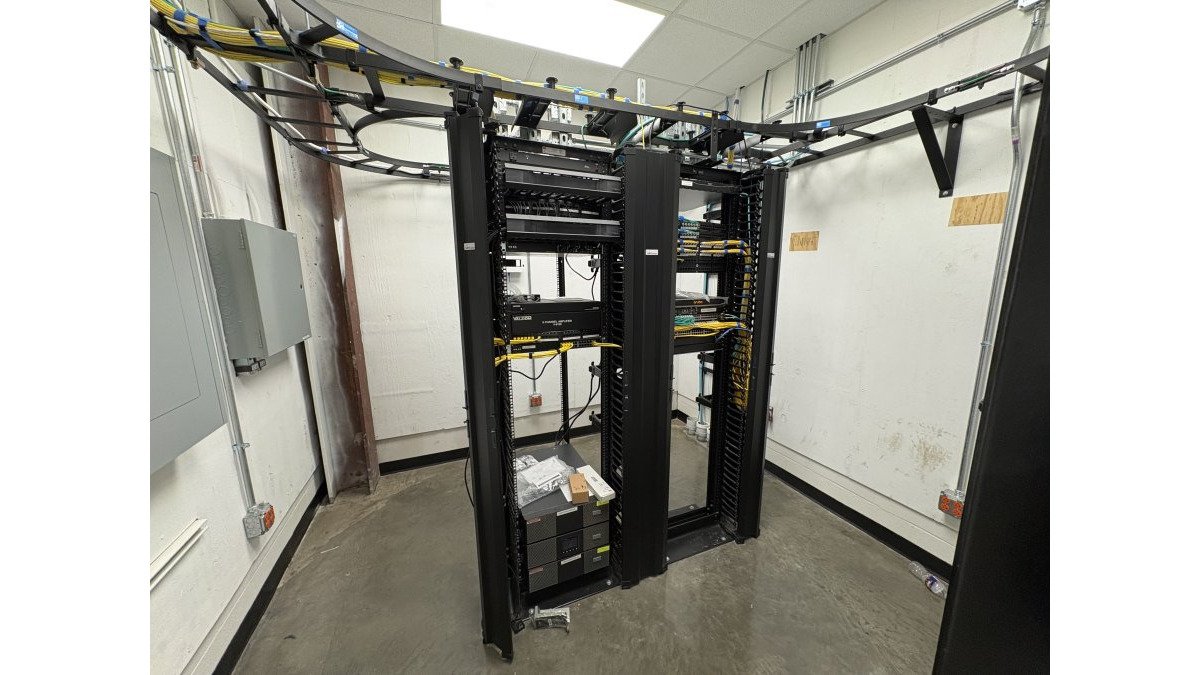
- Cable runs, route low-voltage cable cleanly, keep it separate from electrical wiring, and terminate at wall plates or a rack.
- Equipment mounting and configuration, place and configure the router, switch, and access points, and set up security and guest networks.
- Testing and acceptance, run speed and coverage tests in each main room, verify wired connections, and check for dropped connections.
- Handoff, walk you through the network, share credentials, and explain how to reach support.
Acceptance criteria to confirm before you pay
Before treating the job as finished, confirm that:
- Every room you named as important has usable Wi-Fi signal.
- Wired devices report the expected link speed. Deciding whether structured wiring is worth it explores when wired infrastructure pays off for a home.
- Video calls and large transfers run without drops for at least 10 to 15 minutes.
- Guest and smart-device networks are separated as agreed.
- Default passwords are changed and firmware is current.
Checklist for evaluating a network service provider:
- Starts with an assessment of your home and devices
- Explains the equipment recommendation clearly
- Separates low-voltage cabling from electrical wiring
- Carries liability insurance and can share references
- States a workmanship warranty in writing
- Tests speed and coverage after installation
- Configures security and guest access
- Provides instructions and a support contact you can follow
At All Around Technologies LLC, we serve homeowners and small businesses across Royse City, Rockwall, Fate, Greenville, Forney, Garland, and Mesquite. Our team can help you plan a network around how your home is used, including low-voltage cabling and testing.
Frequently Asked Questions
What is the best home networking setup for my home?
The best setup depends on home size, construction, and how many devices you run. Small single-floor homes often do well with one well-placed router. Larger or multi-story homes usually benefit from mesh nodes or wired access points connected through Ethernet cabling. Start by testing signal strength in the rooms where you need it most, then choose equipment that covers those spots. If you want help matching the design to your layout, All Around Technologies LLC can assess your home and recommend an approach.
How much does it cost to install a home network?
Costs vary with the number of rooms, whether cables must be run through walls, the equipment chosen, and how many access points are needed. We do not publish fixed prices because every home is different. Expect the quote to reflect the scope of cabling, equipment, configuration, and testing. Contact All Around Technologies LLC for a site assessment and a written quote based on your home.
When should I use a mesh Wi-Fi system instead of a single router?
Mesh Wi-Fi works well when your home has dead zones, thick walls, or several floors, and when you want seamless roaming between rooms. It is less ideal when you can run Ethernet cabling, because a wired access point typically delivers more consistent performance. A professional installer can help you decide whether mesh, wired access points, or a combination fits your home.
What should I ask a home network setup service before hiring?
Ask how they assess your space before recommending equipment, whether they configure security settings such as a separate guest network and firmware updates, and how they test coverage after installation. Request a written scope and quote, ask who performs the work, and confirm what post-installation support is included. Clear answers to these questions help you avoid surprises and make sure the network performs where you need it.