 how-to
Improving WiFi for Remote Work: A Step-by-Step Guide
Table of Contents
- Diagnose Your Connection: Broadband vs. WiFi Problems
- Internet Speed Requirements for Zoom and Video Conferencing
- Optimize Router Placement and Reduce Distance
- Choose the Right WiFi Channel and Reduce Interference
- How to Fix Dead Zones in Your House
- Hardwiring Ethernet for Remote Work Reliability
- Adjust Router Settings for Better Performance
- Frequently Asked Questions
Last Updated: October 9, 2026
Diagnose Your Connection: Broadband vs. WiFi Problems
The first step in improving wifi for remote work is figuring out what's actually broken. Your slowdown could come from your broadband connection, router, WiFi signal, device, or a single app, and fixing the wrong layer wastes time and money.
The five layers to check, in order
Work through these from the outside in. Stop when you find the bottleneck.
- Broadband (ISP): What speed and stability is actually arriving at your modem?
- Router: Is the router passing that speed through, or is it the limiting device?
- WiFi signal: How strong and clean is the wireless link at your desk?
- Device: Is your laptop's WiFi adapter or its settings the weak point?
- Application: Is it only Zoom, only the VPN, or only large file transfers that struggle?
If a wired test at the router is fast and stable but your desk is slow, the problem is layers 3 or 4. If the wired test is also slow, the problem is layers 1 or 2.
Test broadband at the router first
Connect a laptop directly to the router with an Ethernet cable and run a speed test. This shows what your ISP delivers with WiFi removed.
Record four numbers, not just two:
- Download speed (Mbps)
- Upload speed (Mbps)
- Ping / latency (milliseconds)
Run the test three times: morning, mid-afternoon, and evening when neighbors and household members are online. Consistent results point to a healthy connection; big swings or ping spiking into the hundreds suggest a broadband or congestion problem worth a call to your ISP.
Practical performance targets for remote work
"Fast enough" depends on what you do. These are reasonable targets for a single remote worker, goals, not guarantees.
- Video calls (one person, HD): roughly 3-5 Mbps down and up, with latency under 100 ms and jitter under 30 ms.
- Calls plus screen sharing or a second caller: plan for 5-10 Mbps upload so both feeds stay clean.
- Large uploads or cloud backups: upload speed is the whole story. A 1 GB file at 10 Mbps takes roughly 13 minutes; at 5 Mbps, about 27.
If your upload is consistently under about 3 Mbps, that is usually the bottleneck for remote work, not download.
Measure WiFi signal at your desk
Now test in the exact spot where you work. A WiFi analyzer app shows signal strength in dBm (a negative number; closer to zero is stronger).
- -30 to -50 dBm: excellent
- -50 to -60 dBm: very good
- -60 to -70 dBm: usable, but watch for drops under load
If your desk reads strong but calls still drop, the issue is likely broadband, router settings, or the device itself. If it reads weak, WiFi is your problem and the placement and dead-zone sections below apply.
Run a repeatable before-and-after test
This is the step most guides skip, and it's how you avoid wasting money on a fix that doesn't help.
- Pick two test points: right next to the router, and at your desk.
- At each point, record download, upload, ping, jitter, and signal strength (dBm).
- Test at three times of day so you capture peak-hour behavior.
- Make one change at a time, move the router, switch channels, add a cable.
- Re-test at the same points and times, and compare.
If your desk numbers move closer to the router numbers, the change worked. If not, undo it and try the next fix. Keep a simple note so you can see the trend instead of guessing.
Internet Speed Requirements for Zoom and Video Conferencing
Video conferencing eats bandwidth fast. Know what you actually need before you upgrade.
But here's what most guides miss: upload speed matters more than download for remote work.
If multiple devices are on calls at once, or someone else is streaming, you need more bandwidth, two simultaneous HD calls need around 5 Mbps upload.
Test your actual speeds during a real work call. If upload is consistently below 2 Mbps, that's your bottleneck.
Optimize Router Placement and Reduce Distance
Router placement is one of the easiest wins. Most people tuck the router in a corner, under a desk, or inside a cabinet.
Your router broadcasts radio waves in all directions, and walls, metal, water, and dense materials block or weaken them.
Best practices for router placement:
- Put it in a central, elevated location (shelf or wall mount, not the floor)
- Keep it away from walls, metal objects, and appliances
- Avoid enclosures, cabinets, or hiding it behind furniture
If your work area is far from the router, move the router closer or use a wired connection.
Choose the Right WiFi Channel and Reduce Interference
Your WiFi operates on a channel within a frequency band, like a radio station. If your channel is crowded, data collides and slows down.
Understand 2.4 GHz vs. 5 GHz bands
Most routers broadcast on both bands:
2.4 GHz band: Longer range, penetrates walls better, but only 3 non-overlapping channels. Crowded. Slower speeds.
5 GHz band: Shorter range, blocked more by walls, but 23+ non-overlapping channels. Less crowded. Faster speeds.
For remote work, use 5 GHz if your work area is close enough to get a strong signal. If you're far from the router or separated by many walls, 2.4 GHz reaches you better, but expect slower speeds.
Scan for congested channels
Your neighbors' networks broadcast on the same channels, so if everyone on your street uses channel 6 on 2.4 GHz, your data fights for space.
On 2.4 GHz, use channel 1, 6, or 11 (the only non-overlapping options).
On 5 GHz, pick a channel with no nearby networks. Your router's settings let you change this.
How to Fix Dead Zones in Your House
A dead zone is any spot where WiFi is too weak or unstable for reliable work. The right fix depends on your layout, distance from the router, and whether you can run a cable.
Identify and map your dead zones
Walk through the house with a WiFi analyzer app and note the dBm reading in each room. Below about -70 dBm is a dead zone for work; below -80 dBm is unusable for calls.
Common causes:
- Distance from the router
- Interior rooms with no direct line of sight
- Metal HVAC ducts, foil-backed insulation, and plumbing in the walls
Write down which rooms are weak and how far each is from the router. That map drives the decision below.
Match the fix to your layout
Apartment or small single-story home (one or two weak rooms):
- Start with router placement and channel changes, often enough on their own.
- If one room is still weak, a single mesh node or a well-placed extender can close the gap.
- Avoid stacking multiple extenders; each hop adds latency and cuts throughput.
Multi-story home (router on one floor, work area on another):
- WiFi travels poorly through floors, especially with ductwork between them.
- A mesh system with a node on each floor usually beats a single router plus extender.
- If you can run Ethernet between floors, a wired mesh node or access point on the work floor is the most reliable option.
Long or rambling single-story home (dead zone at the far end):
- Mesh with two or three nodes is the typical answer.
- If the far end has coax outlets, a MoCA adapter can carry a wired-like signal over existing coaxial cable, useful when fishing new Ethernet is impractical.
- Powerline adapters are a fallback where coax and Ethernet aren't options, but performance varies a lot with your home's wiring.
Thick or older walls (brick, plaster, foil insulation):
- Expect 5 GHz to struggle through more than one wall.
- Use 2.4 GHz for reach in those rooms, or place a node inside the room rather than trying to push signal through the wall.
- A wired access point in the room is the cleanest fix if a cable can be run.
Compare the options by cost and benefit
Costs vary by home and equipment, so treat these as relative tiers.
- Free adjustments (placement, channel, firmware): lowest cost, sometimes the biggest gain. Try first.
- Ethernet run to the work area: moderate one-time cost if professionally installed; best reliability and no shared-airtime penalty. Ideal when the desk is fixed.
- Mesh system: higher upfront cost than an extender; best for whole-home coverage and multiple dead zones. Wired backhaul between nodes gives the best results.
A note on running cable
Ethernet, coax, and speaker wire are low-voltage cables, different from the line-voltage electrical wiring in your walls. Low-voltage network cabling can often be run in walls, but the work should be done carefully to avoid drilling into electrical runs, plumbing, or structural members, and to keep cables accessible for future upgrades.
At All Around Technologies LLC, we provide Network Infrastructure & Wi-Fi solutions for homes and businesses throughout the DFW area, including Royse City, Rockwall, Fate, Greenville, Forney, Garland, and Mesquite.
Hardwiring Ethernet for Remote Work Reliability
The most reliable fix is a wired connection. Ethernet eliminates WiFi interference, congestion, and signal loss, if you're on video calls, it's the way to go.
When wired connections matter most
Use Ethernet if:
- You're on video calls most of the day
- Your upload speed must be rock-solid
- Your work area has weak WiFi signal
Ethernet won't make your broadband faster, but it removes WiFi as a variable. If your broadband is solid, Ethernet is solid.
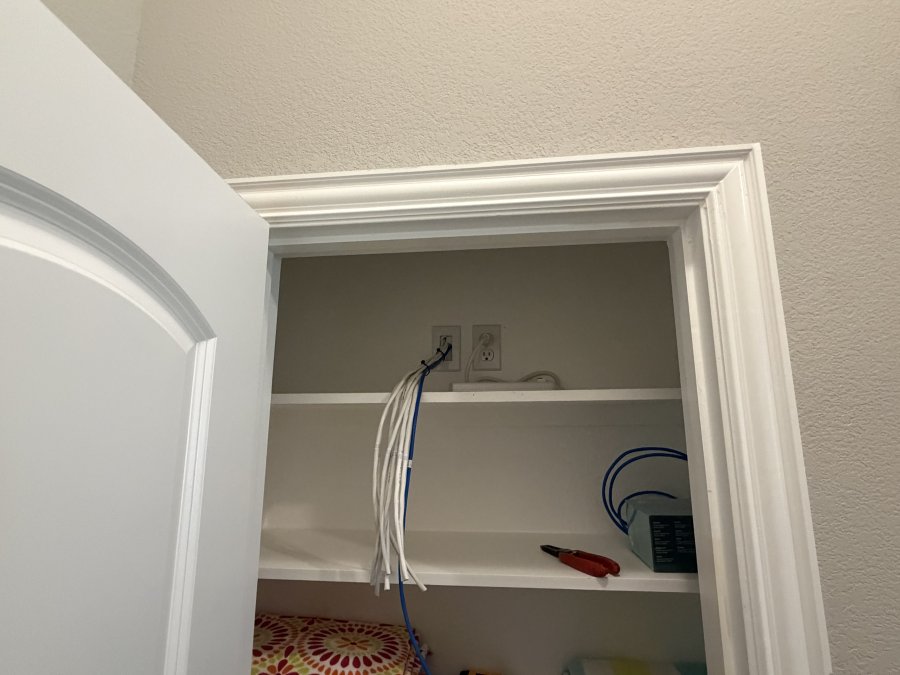
Cable routing and professional installation
Running Ethernet from your router to your work area means routing a cable through your house. Your options:
Surface-mounted cable: Run it along baseboards or under rugs. Visible but easy. No damage to walls.
In-wall cabling: Professional installation runs cable behind walls and through conduit. Looks clean. Requires drilling and wall access.
Conduit and raceways: Semi-professional look. Cable runs through plastic channels mounted to walls.
For in-wall installation, we recommend hiring a professional. At All Around Technologies LLC, we handle network cabling and structured wiring for homes throughout the DFW area, running low-voltage cables like Ethernet safely and neatly, keeping them away from electrical wiring and ensuring they're accessible for future upgrades.
Adjust Router Settings for Better Performance
Your router has settings that can improve performance. You don't need to be technical to make these changes.
Update firmware and security settings
Firmware is the software that runs your router, and manufacturers release updates that fix bugs and improve performance. Check your router's admin panel (usually accessible from a web browser) for a firmware update option.
While you're there, change your WiFi password to something strong. Use a mix of uppercase, lowercase, numbers, and symbols. This keeps unauthorized devices off your network and protects your bandwidth.
Manage connected devices and bandwidth
Every device connected to your WiFi uses bandwidth.
Check your router's settings to see which devices are connected, and disconnect anything you're not using.
Improving wifi for remote work often comes down to diagnosis, placement, and the right tool for your situation.
If running cables through your house feels overwhelming, we can help.
Frequently Asked Questions
How much internet speed do I actually need for remote work?
For reliable remote work, aim for at least 10 Mbps download and 2.5 Mbps upload for video calls and web conferencing. If multiple people work from home or stream video during calls, 25 Mbps download and 5 Mbps upload provide better stability. Check your broadband plan to confirm your ISP provides these speeds, then test your actual connection speed to see if WiFi or broadband is the bottleneck.
Why is my WiFi dropping during video calls and how do I fix it?
WiFi drops during calls usually stem from weak signal strength, channel congestion, or interference from walls and appliances. Start by moving closer to your router or repositioning it to a central location. Switch to the 5 GHz band if your router supports it, as it offers faster speeds and less interference than 2.4 GHz. If drops persist, consider a wired Ethernet connection for calls, which eliminates wireless interference entirely.
Do WiFi extenders and mesh systems actually work for improving coverage?
Both can work, but they solve different problems. Extenders repeat your existing signal and work best for small dead zones, though they may reduce speed. Mesh systems use multiple nodes to create a stronger, unified network across your home and typically perform better for larger spaces or homes with many walls. For a home office in one area, an extender or repositioning your router may be sufficient; for whole-home coverage, mesh is more effective.
Should I hardwire my work computer with Ethernet instead of WiFi?
Yes, if your office is near your router or modem. A wired Ethernet connection eliminates wireless interference and provides more stable, faster speeds for video conferencing and large file transfers. If running cable is difficult, a powerline adapter or mesh system with wired backhaul offers a middle ground. For professional setups, structured cabling installed by a technician provides the cleanest, most reliable solution.